
Billy’s Apocalypse is a malicious program that belongs to the BlackClaw ransomware family. If you have this ransomware program on your machine, then it could encrypt your data. To verify if that already happened, you can notice if some of your files have the “.apocalypse” extension. For example, the program would change an image named “Test.jpg” to “Test.jpg.apocalypse” after encryption. You might not be able to open them without decrypting them.
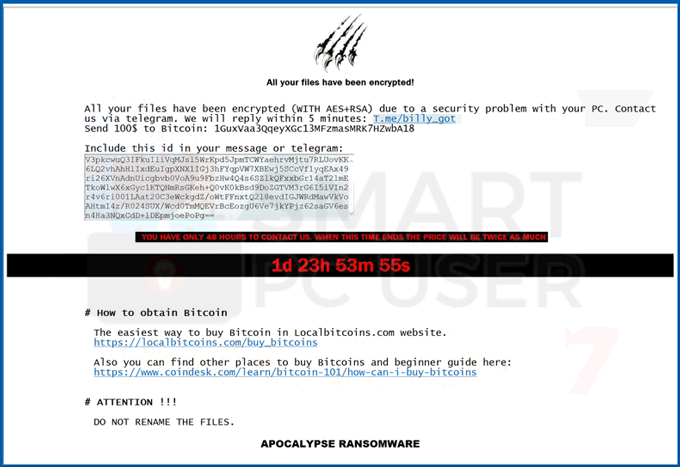
Billy’s Apocalypse then creates a ransom note titled “RECOVER YOUR FILES.txt” and “RECOVER YOUR FILES.hta” in each of the compromised folders. It informs you that the ransomware program has encrypted all your files due to your computer’s security issues. To recover your files, it asks you to send a message on the provided telegram id. The cybercriminals ask you to mention the unique identifier to get the proper decryption tool.
The price for the decryption tool, as mentioned in the message, is $100. You are supposed to pay it in bitcoins. The message also shares a few ways to obtain bitcoins. Still, we highly suggest you not to contact these cybercriminals under any circumstances. They often take the money but do not provide any decryption tool. Eventually, you might end up facing a financial loss adding to the data loss.
Moreover, it is vital to delete Billy’s Apocalypse ransomware from your system as soon as possible. Otherwise, it can cause further damage to your files. We recommend using a robust antimalware application for the purpose. It can detect and eliminate any malicious file from your computer instantly. Moreover, it would protect you from similar attacks in the future as well.
This guide was written to help you remove the infection itself from your computer, and if a 100% proven method to recover the encrypted files is found we will update this guide.
We cannot help you recover your files and we can only recommend that you use ShadowExplorer or free file recovery software to restore your documents.
- 1. How did the Billy's Apocalypse ransomware get on my computer?
- 2. What is Billy's Apocalypse ransomware?
- 3. Is my computer infected with Billy's Apocalypse ransomware?
- 4. Is it possible to decrypt files encrypted by Billy's Apocalypse ransomware?
- 5. How to remove the Billy's Apocalypse ransomware (Virus Removal Guide)
- 6. How to prevent your computer from becoming infected by Billy's Apocalypse ransomware
1. How did the Billy's Apocalypse ransomware get on my computer?
The Billy's Apocalypse ransomware is distributed via spam email containing infected attachments or by exploiting vulnerabilities in the operating system and installed software.
Cyber-criminals spam out an email, with forged header information, tricking you into believing that it is from a shipping company like DHL or FedEx. The email tells you that they tried to deliver a package to you, but failed for some reason. Sometimes the emails claim to be notifications of a shipment you have made. Either way, you can’t resist being curious as to what the email is referring to – and open the attached file (or click on a link embedded inside the email). And with that, your computer is infected with the Billy's Apocalypse ransomware.
This ransomware was also observed attacking victims by hacking open Remote Desktop Services (RDP) ports. The attackers scan for the systems running RDP (TCP port 3389) and then attempt to brute force the password for the systems.
2. What is Billy's Apocalypse ransomware?
- Ransomware family: Black Claw
- Extensions: .apocalypse
- Ransom note: RECOVER YOUR FILES.hta and RECOVER YOUR FILES.txt
- Ransom: $100 in bitcoins
- Contact: T.me\billy_got (Telegram)
This Billy's Apocalypse ransomware variant restricts access to data by encrypting files with the .apocalypse extension. It then attempts to extort money from victims by asking for “ransom”, in form of Bitcoin cryptocurrency, in exchange for access to data.
This ransomware targets all versions of Windows including Windows 7, Windows 8.1 and Windows 10. Billy's Apocalypse ransomware searches for files with certain file extensions to encrypt. The files it encrypts include important productivity documents and files such as .doc, .docx, .xls, .pdf, among others. When these files are detected, this infection will change the extension to .apocalypse, so they are no longer able to be opened.
The Billy's Apocalypse ransomware changes the name of each encrypted file to the following format: .apocalypse.
Files targeted are those commonly found on most PCs today; a list of file extensions for targeted files include:
.sql, .mp4, .7z, .rar, .m4a, .wma, .avi, .wmv, .csv, .d3dbsp, .zip, .sie, .sum, .ibank, .t13, .t12, .qdf, .gdb, .tax, .pkpass, .bc6, .bc7, .bkp, .qic, .bkf, .sidn, .sidd, .mddata, .itl, .itdb, .icxs, .hvpl, .hplg, .hkdb, .mdbackup, .syncdb, .gho, .cas, .svg, .map, .wmo, .itm, .sb, .fos, .mov, .vdf, .ztmp, .sis, .sid, .ncf, .menu, .layout, .dmp, .blob, .esm, .vcf, .vtf, .dazip, .fpk, .mlx, .kf, .iwd, .vpk, .tor, .psk, .rim, .w3x, .fsh, .ntl, .arch00, .lvl, .snx, .cfr, .ff, .vpp_pc, .lrf, .m2, .mcmeta, .vfs0, .mpqge, .kdb, .db0, .dba, .rofl, .hkx, .bar, .upk, .das, .iwi, .litemod, .asset, .forge, .ltx, .bsa, .apk, .re4, .sav, .lbf, .slm, .bik, .epk, .rgss3a, .pak, .big, wallet, .wotreplay, .xxx, .desc, .py, .m3u, .flv, .js, .css, .rb, .png, .jpeg, .txt, .p7c, .p7b, .p12, .pfx, .pem, .crt, .cer, .der, .x3f, .srw, .pef, .ptx, .r3d, .rw2, .rwl, .raw, .raf, .orf, .nrw, .mrwref, .mef, .erf, .kdc, .dcr, .cr2, .crw, .bay, .sr2, .srf, .arw, .3fr, .dng, .jpe, .jpg, .cdr, .indd, .ai, .eps, .pdf, .pdd, .psd, .dbf, .mdf, .wb2, .rtf, .wpd, .dxg, .xf, .dwg, .pst, .accdb, .mdb, .pptm, .pptx, .ppt, .xlk, .xlsb, .xlsm, .xlsx, .xls, .wps, .docm, .docx, .doc, .odb, .odc, .odm, .odp, .ods, .odt
Once your files are encrypted with the .apocalypse extension, this ransomware will create the RECOVER YOUR FILES.hta and RECOVER YOUR FILES.txt ransom note in each folder that a file has been encrypted and on the Windows desktop.
When the infection has finished scanning your computer it will also delete all of the Shadow Volume Copies that are on the affected computer. It does this so that you cannot use the shadow volume copies to restore your encrypted files.
3. Is my computer infected with Billy's Apocalypse Ransomware?
When Billy's Apocalypse ransomware infects your computer it will scan all the drive letters for targeted file types, encrypt them, and then append the .apocalypse extension to them. Once these files are encrypted, they will no longer able to be opened by your normal programs. When this ransomware has finished encrypting the victim’s files, it will create a RECOVER YOUR FILES.hta and RECOVER YOUR FILES.txt text file which includes instructions on how to recover the files.
Below is the message that you will see in the RECOVER YOUR FILES.hta and RECOVER YOUR FILES.txt file:
All your files have been encrypted!
All your files have been encrypted (WITH AES+RSA) due to a security problem with your PC. Contact us via telegram. We will reply within 5 minutes: T.me/billy_got Send 100$ to Bitcoin: 1GuxVaa3QqeyXGc13MFzmasMRK7HZwbA18
Include this id in your message or telegram:
-YOU HAVE ONLY 48 HOURS TO CONTACT US. WHEN THIS TIME ENDS THE PRICE WILL BE TWICE AS MUCH
1d 23h 53m 55s
The easiest way to buy Bitcoin in Localbitcoins.com website. hxxps://localbitcoins.com/buy_bitcoins
Also you can find other places to buy Bitcoins and beginner guide here: hxxps://www.coindesk.com/learn/bitcoin-101/how-can-i-buy-bitcoins
# ATTENTION !!!
DO NOT RENAME THE FILES. APOCALYPSE RANSOMWARE
4. Is it possible to decrypt files encrypted with the Billy's Apocalypse ransomware?
The security companies and government officials often release decryptors for ransomware. You can take help of these decryptors to decrypt your encrypted files by Billy's Apocalypse ransomware.
However, it is not necessary that decryptors are available for kind and type of the ransomware you got infected. Especially if the ransomware is new and widespread, then it is most likly that you won't find decryptors for it. If it is an old and popular ransomware then you might find the decryptors.
The first step towards finding the decryptor is to know the acutal name and type of ransomware you get infected. To do that you can take help of NoMoreRansom.org. Visit the website and paste the ransom note in box provided. You can also upload the encrypted file to know the ransomware name. Once you do that click on GO! FIND OUT button.
Now the website will tell you about the type of ransomware and also provide you link if there is a decryptor available.
ID Ransomware is a similar website, you can upload the ransom note, sample encrypted file, or the contact email address to know about the type of ransomware. Once you know about it you can find the decryptors on the internet. But do not download decryptors from shady websites they may further infect your computer.
However you can trust the decryptors for Billy's Apocalypse ransomware from the below sites.
If you haven't find the decryptors then it is not possible to get your files back. That doesn't mean you should pay ransom to the cybercriminals. Do not pay any money to recover your files. Even if you were to pay the ransom, there is no guarantee that you will regain access to your files.
If you’ve already paid the ransom, immediately contact your bank and your local authorities. If you paid with a credit card, your bank may be able to block the transaction and return your money.
You can also contact the following government fraud and scam reporting websites:
- In the United States, go to the On Guard Online website.
- In Australia, go to the SCAMwatch website.
- In Canada, go to the Canadian Anti-Fraud Centre.
- In France, go to the Agence nationale de la sécurité des systèmes d’information
- In Germany, go to the Bundesamt für Sicherheit in der Informationstechnik website.
- In Ireland, go to the An Garda Síochána website.
- In New Zealand, go to the Consumer Affairs Scams website.
- In the United Kingdom, go to the Action Fraud website.
If your country or region isn’t listed here, we recommend that you contact your country or region’s federal police or communications authority.
5. How to remove the Billy's Apocalypse ransomware (Virus Removal Guide)
It’s important to understand that by starting the removal process you risk losing your files, as we cannot guarantee that you will be able to recover them. MalwareFox and HitmanPro can detect and remove this infection, however, these programs cannot recover your documents, pictures, or files. Your files may be permanently compromised when trying to remove this infection or trying to recover the encrypted documents. We cannot be held responsible for losing your files or documents during this removal process.
STEP 1: Use MalwareFox to remove Billy's Apocalypse ransomware
MalwareFox is antimalware that works on heuristic approach to detect and remove malware from your PC. It analyzes the malware signatures as well as their behaviour. If a program acts like a malware then MalwareFox blocks it right there. It is lightweight on your system resource and finishes the scan quickly.
Its not like I am recommending you to install a costly software to remove the malware. The MalwareFox subscription charges are fairly low. But that is for a fully featured program with real-time protection capabilities. The scanning works even with the free version, though you can try the MalwareFox Premium for 14 days. Also, you don't need to remove your current antivirus, MalwareFox will work effectively without any conflicts.
-
Download MalwareFox.
You can download MalwareFox by clicking the link below.
-
Double-click on the MalwareFox setup file.
Once the MalwareFox is downloaded, double click on MalwareFox.exe file to install it on your PC. The downloaded files are mostly saved to the Downloads folder.

You will see an User Account Control pop-up asking if you want to allow MalwareFox to make changes to your device. Click on “Yes” to proceed with the installation steps.

-
Follow the on-screen prompts to install MalwareFox.
First MalwareFox installer ask you to choose the language, select your preferend language and click on OK.

Then the MalwareFox installation Wizard appears, click on Next and follow the screen instructions to setup MalwareFox on your PC.

Once the installation is complete, MalwareFox will download the latest version and virus signatures from the server. Let it update.

-
Click on “Scan” Button.
To perform a system scan, click on the “Scan” button.

-
Wait for MalwareFox scan to complete.
MalwareFox is now scanning your computer for adware, pop-ups, browser hijackers, and other malicious programs. This process can take a few minutes, so you can do some other work while it is scanning your PC, don't worry the PC won't get slow during the scan.

-
Click on “Next”.
Once the scan has completed, you will see the list of detected threats on your PC. To remove the malware that MalwareFox has found, click on the “Next” button.

When the malware removal process is complete, you can close MalwareFox and continue with the rest of the instructions.

STEP 2: Use HitmanPro to scan for malware and unwanted programs
HitanPro works on unique cloud-based approach to detect the threats. You can use it as a second opinion malware scanner. HitmanPro also observe the behaviour active programs and checks the locations where malware normally resides. If there is a suspicious file then it upload thes file to cloud where it is scanned by Bitdefender and Kaspersky antivirus engines.
HitmanPro is available for a 30-days trail that lets you to clean the threats. After that you may need to purchase it which costs around $24.95 for 1 year single PC. If you won't upgrade then you can scan using the HitmanPro however it won't let you remove or quarntine the detected threat.
-
Download HitmanPro.
You can download HitmanPro by clicking the link.
 HITMANPRO DOWNLOAD LINK
(The link will open a new page from where you can download HitmanPro) -
Install HitmanPro.
When HitmanPro has finished downloading, double-click on “hitmanpro.exe” if you have 32-bit Windows or “hitmanpro_x64.exe” if you have 64-bit windows, to install this program on your PC. In most cases, downloaded files are saved to the Downloads folder.

Now you will see an User Account Control pop-up asking if you want to allow HitmanPro to make changes to your device. Click “Yes” to install it on your PC.

-
Follow the screen instructions.
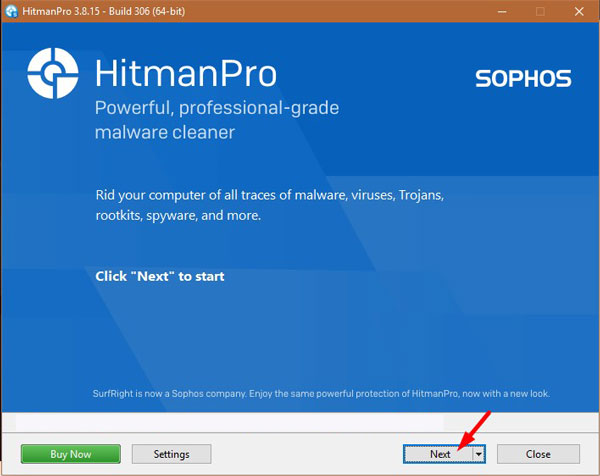
When HitmanPro starts you will see the start screen as shown below. Click on the “Next” button to perform a system scan.

-
Wait for the HitmanPro scan to complete.
HitmanPro will now start scanning your PC for malware. This process may take a few minutes.

-
Click on “Next”.
Once HitmanPro finished the scan, you will see a list of all the malicious programs that it found in your system. Click on the “Next” button to remove the malware.

When the process is complete, you can close HitmanPro and continue with the rest of the instructions.
STEP 3: Restore the files encrypted by Billy's Apocalypse ransomware with recovery software
Option 1: Restore your files encrypted by Billy's Apocalypse ransomware with ShadowExplorer
Billy's Apocalypse will attempt to delete all shadow copies when you first start any executable on your computer after becoming infected. Thankfully, the infection is not always able to remove the shadow copies, so you should continue to try restoring your files using this method.
- You can download ShadowExplorer from the below link:
SHADOW EXPLORER DOWNLOAD LINK (This link will open a new web page from where you can download “ShadowExplorer”) - Once you have downloaded and installed ShadowExplorer, you can follow the below video guide on how to restore your files while using this program.
Option 2: Restore your files encrypted with the Billy's Apocalypse extension with File Recovery Software
When the files are encrypted with the Billy's Apocalypse , this ransomware first makes a copy of them, encrypts the copy, and then deletes the original. Due to this you can use file recovery software such as:
- Recuva
You can follow the below guide on how to use Recuva:
How to prevent your computer from becoming infected by Billy's Apocalypse ransomware
To protect your computer from the Billy's Apocalypse ransomware, you should a strong antimalware on your system like MalwareFox and keeps its real-time protection enabled. Also, you need to take backup of your personal documents.
Your computer should now be free of the Billy's Apocalypse ransomware infection. If you are still experiencing problems while trying to remove Billy's Apocalypse ransomware from your computer, please comment below we will try to help you as much as possible.