
Threat Name:
Maxi Buy
Category
Adware
Target
Invades Privacy
Threat Level
Moderate
Removal
Easy
Problem
Maxi Buy Extension is an adware program. It attacks Chrome, Firefox, Edge, Internet Explorer browsers and hijacks their homepage, new tab, and default search engine to display malicious ads.
Symptoms
Maxi Buy changes your homepage, new tab, and default search engine. When you open your browser or search something it shows on the browser. It doesn't go away.even if you change the settings.
Solution
To remove Maxi Buy follow this guide. You can also remove it and other PUP from your computer with MalwareFox antimalware. It searches and removes all adware, PUP, and Trojans from your computer.
Maxi Buy is an adware program that enter into your computer using third-party software. It hijacks the settings and inject ad codes to websites that you visit. It attacks Google Chrome, Mozilla Firefox, Microsoft Edge, and Internet Explorer. It hijacks your homepage, new tab, and default search engine. It sometimes redirects you to other pages without your concern. It also steal your personal information like search history, browse history, IP Address, location, and some hardware information. It is a good idea to remove this hijacker right now. In this article, you will know how to remove Maxi Buy from all browsers at once.

How Maxi Buy Extension gets into your Computer?
Maxi Buy uses software bundling to enter in your computer. The makers of this hijacks bundles it with other free and pirated software on the internet. When you download and install such software it also gets installed on your computer. It is a good idea to pay attention to the installation steps, sometimes, it display preselected terms & condition page. You can deselect it and avoid this hijacker from ruining your peace.
What are the Potential Dangers to Not Remove Maxi Buy Extension?
Ruined Browsing Experience
Maxi Buy Extension changes your homepage and default search engine. This hijacker alters your search results with malicious product links. It displays different ads on the search result page also. These ads redirect you to malicious pages. Overall it ruins your browsing experience.
Personal Information Theft
Maxi Buy Extension tracks user’s personal information like IP Address, Geo Location, Search Query, Browsing History, and the content on the pages. This information is used to serve targeted ads on the computer. This information is also sold to the third party clients to generate revenue.
Malicious Search Results
Maxi Buy Extension tracks your browsing history and search queries. The search result displayed on the result page is not usual. It alters the results and shows different malicious ads on the result page. These ads redirect you to the pages that may contain the more severe threat to your computer. So it is a good idea to remove this extension from all your browsers right now.
How to Remove Maxi Buy Extension from your Browser?
Manually Remove Maxi Buy Extension from your Computer
Manually Remove Maxi Buy Extension from your Computer Completely
Uninstall Unwanted Programs from your Computer
- WINDOWS 10
- wINDOWS 8 / 8.1
- WINDOWS 7 / VISTA


Step 1 - Click on the Start button and Choose the Control Panel.
In the Programs section, choose to Uninstall a Program Option.

Step 2 - Now, in a new window, you will see the list of all installed programs. Look out for any recently installed potentially unwanted programs (PUP). Select them and click on Uninstall button. Follow the instruction to uninstall the program.

Remove Maxi Buy Extension from Browsers
- gOOGLE CHROME
- MOZILLA FIREFOX
- INTERNET EXPLORER
Delete Malicious Extensions from Google Chrome


Reset Google Chrome to Remove Maxi Buy Extension


Automatically Remove Maxi Buy Extension from your Computer
You have seen the manual process of Maxi Buy Extension removal. Undoubtedly, it was not easy. Here I am suggesting you to use an automatic tool to do this task in less than 5 minutes. This software program is called MalwareFox, it automatically detects malware like Maxi Buy and removes it from your computer. Enabling its real-time protection to keep you protected against all type of malware.
Step 1- Install MalwareFox on your PC
Open the Installer by Clicking on the Downloaded file.

Now choose your desired language and follow the instructions to install the MalwareFox on your computer.

After completing the installation, the MalwareFox will update the application to its latest version. Let it update.

Now it will sync the Malware database with the server. It is the crucial step as it needs to know latest types of malware.

Step 2 - Scan and Clean your Computer for Malware
When the update process completes, it will show Real Time Protection: On. Now you can scan your computer. Press Scan button and leave everything on MalwareFox, it knows how to deal with browser hijacker and other malware.

See how MalwareFox detects Maxi Buy Extension in less than 3 minutes.
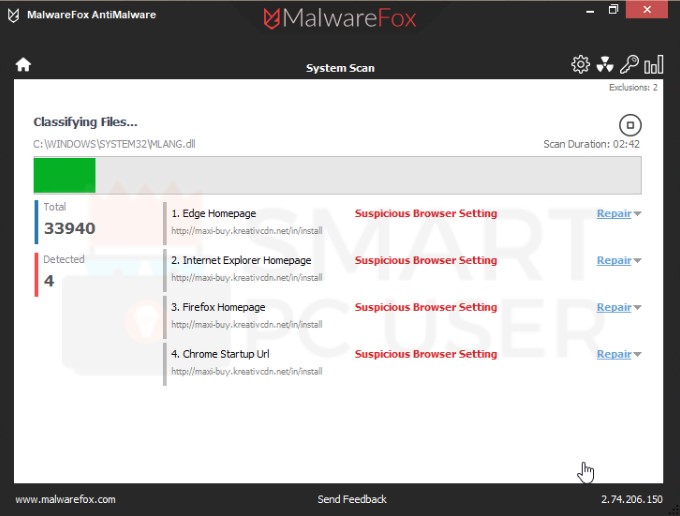

Screenshot of MalwareFox detecting Maxi Buy Extension
After the complete scan click on Next button to clean your computer thoroughly.
How to Stay Away from Maxi Buy Extension and other Browser Hijackers?
You need to be little cautious to stay protected. Such malware takes advantage of user's unawareness. Maxi Buy spread through software bundling and some other method.
It would be better to avoid free software from the internet. There are options from which you can skip it. Also, you should not download the attachment from spam emails. These attachments might be infectious. Having an anti malware installed on your computer is a better way to stay away from such malware. I suggest you to install MalwareFox. It is good for this task. Keep enabling its real-time protection so that it can defend you from malware attacks.
Congratulations!
You have successfully removed Maxi Buy Extension from your computer system. Keep the Real-time protection enabled to prevent any further attacks.